flutter_image_picker_ui 1.0.1
SDKflutter
Platformandroidioswindowslinuxmacos
A Flutter package for a UI to pick or take images
📸 flutter_image_picker_ui
A modern and customizable image picker UI for Flutter, built on top of the popular image_picker plugin.
This widget provides a clean, user-friendly interface for selecting images from the camera or gallery — with support for previews, icons, styling options, and controller-based clearing.
📸 Screenshot
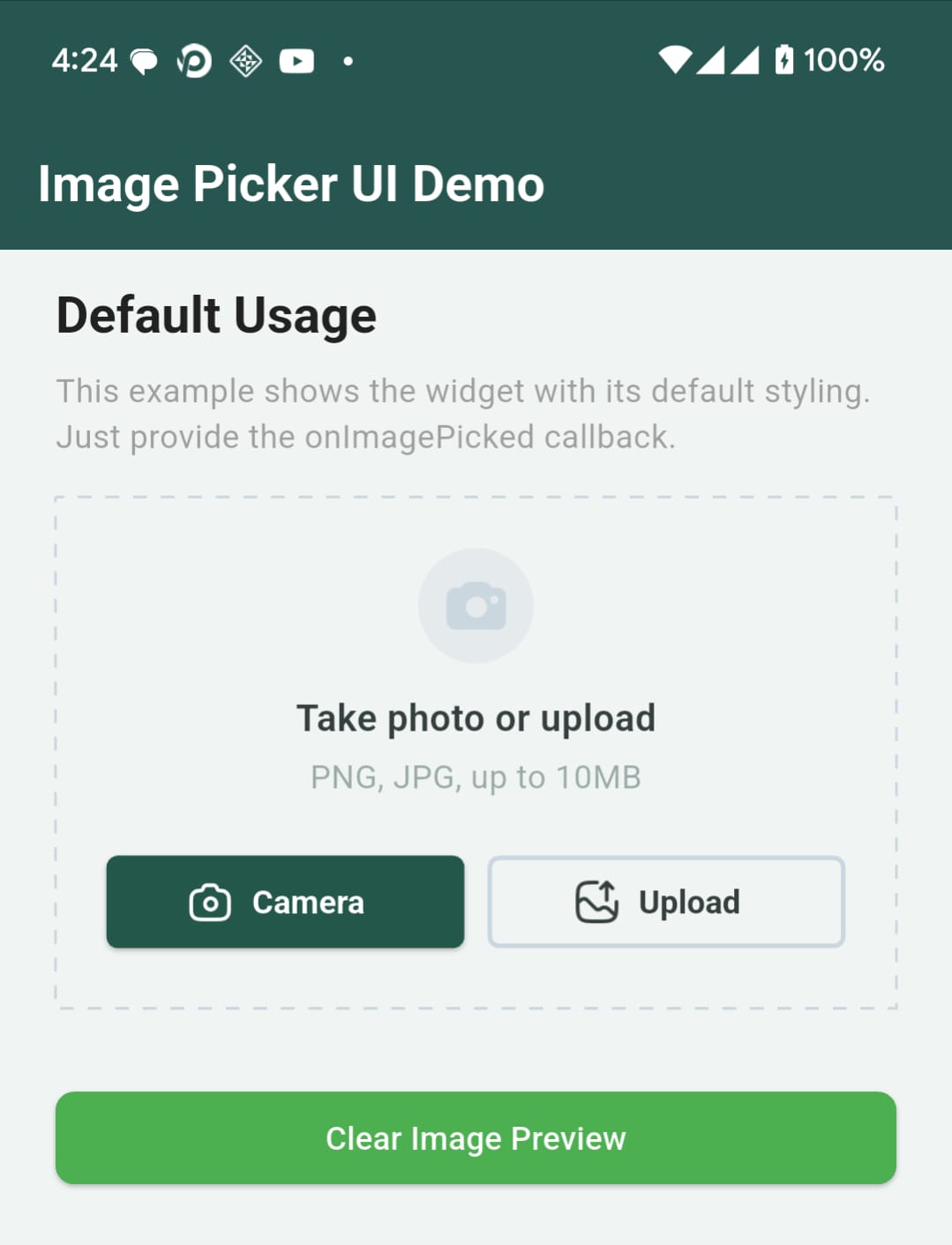
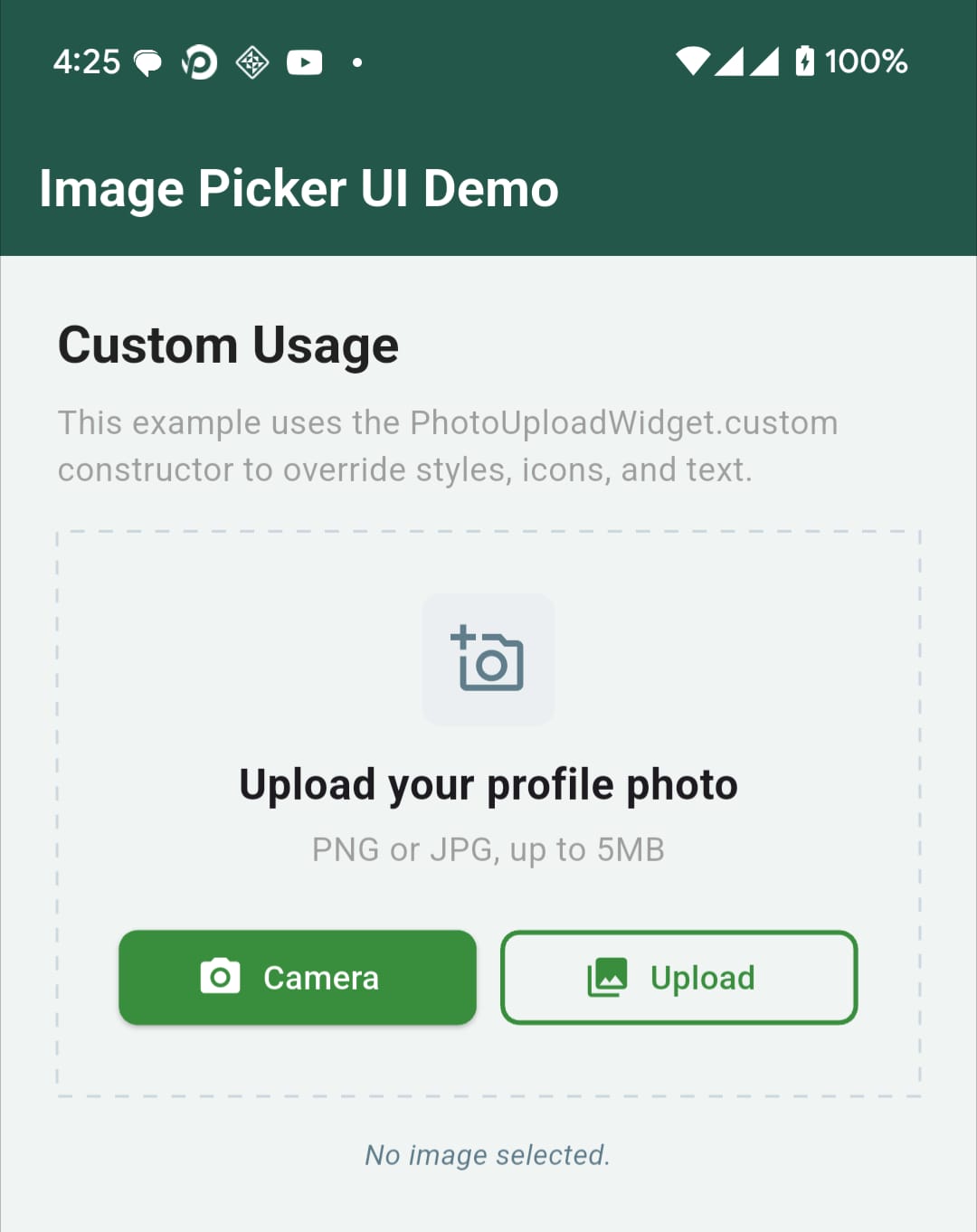
✨ Features
- Pick image from camera or gallery
- Show image preview with clear (X) button
- Reset/clear image via controller
- Fully customizable styles, icons, and text
- Dotted border with optional icon, title & subtitle
- Designed to be developer-friendly
🚀 Installation
Add this to your pubspec.yaml:
dependencies:
  flutter_image_picker_ui: 1.0.1 # or use the latest version
Setup Requirement
⚠️ This package uses the
image_pickerplugin under the hood. Make sure to follow its official native configuration guide for Android and iOS setup before using this widget.
Run:
flutter pub get
🧪 Example Usage (Default)
PhotoUploadWidget(
  onImagePicked: (File? image) {
    if (image != null) {
      print("Image picked: \${image.path}");
    } else {
      print("Image cleared");
    }
  },
)
You can optionally customize the button text styles, icons, and paddings through the default constructor.
🎨 Fully Custom Widget Example
PhotoUploadWidget.custom(
  onImagePicked: (File? image) {},
  onCreate: (controller){
    // you can clear the image by controller.clear()
  },
  icon: Container(
    padding: const EdgeInsets.all(12),
    decoration: BoxDecoration(
      shape: BoxShape.rectangle,
      color: Colors.blueGrey[50],
      borderRadius: const BorderRadius.all(Radius.circular(8)),
    ),
    child: const Icon(
      Icons.add_a_photo_outlined,
      size: 32,
      color: Colors.blueGrey,
    ),
  ),

  title: 'Upload your profile photo',
  titleStyle: const TextStyle(
    fontSize: 18,
    fontWeight: FontWeight.bold,
    color: Colors.black,
  ),

  subtitle: 'PNG or JPG, up to 5MB',
  subtitleStyle: const TextStyle(
    fontSize: 14,
    color: Colors.grey,
  ),

  padding: const EdgeInsets.all(24),

  cameraBtnDecoration: ElevatedButton.styleFrom(
    backgroundColor: Colors.green.shade700,
    foregroundColor: Colors.white,
    shape: RoundedRectangleBorder(
      borderRadius: BorderRadius.circular(8),
    ),
  ),

  galleryBtnDecoration: OutlinedButton.styleFrom(
    foregroundColor: Colors.green.shade700,
    side: BorderSide(
      color: Colors.green.shade700,
      width: 2,
    ),
    shape: RoundedRectangleBorder(
      borderRadius: BorderRadius.circular(8),
    ),
  ),

  cameraIcon: const Icon(Icons.photo_camera, size: 20),
  galleryIcon: const Icon(Icons.photo_library, size: 20),
);
📚 API Overview
| Prop | Type | Description |
|---|---|---|
onImagePicked | Function(File?) | Called with image or null on clear |
onCreate | Function(PhotoUploadController) | Provides controller for programmatic control |
title / subtitle | String | Shown above the buttons |
titleStyle | TextStyle | Style for the main title |
subtitleStyle | TextStyle | Style for the subtitle text |
cameraBtnDecoration | ButtonStyle | Style for camera button |
galleryBtnDecoration | ButtonStyle | Style for gallery button |
cameraIcon | Widget | Optional camera button icon |
galleryIcon | Widget | Optional gallery button icon |
icon | Widget? | Optional top icon when no image picked |
padding | EdgeInsetsGeometry | Padding around content |
📤 Clear Button & Controller
- When an image is picked, a clear (X) button appears in the top-right corner.
- Tapping it clears the preview and calls
onImagePicked(null). - You can also clear/reset the image programmatically using the
PhotoUploadController:
late PhotoUploadController controller;

PhotoUploadWidget(
  onCreate: (ctrl) => controller = ctrl,
  onImagePicked: (img) => print(img),
)

// Later, to clear image:
controller.clearImage();
📄 License
MIT © Abdullah Al Mamun
👥 Maintainer
Made with ❤️ using Flutter.